Scheduled Process Starts
With scheduled process starts, the AristaFlow BPM Platform creates and starts instances of a process template automatically on a time schedule, e.g. a report every Monday at 7:00 a.m. or a clean-up every 15 minutes. A start can pass values for the input parameters of the process template.
The starts are executed by the Event Manager, which runs in the Automatic Client by default. An integrated server contains the Automatic Client, so there the Event Manager runs in the integrated server. You can add a scheduled start in three ways:
- In the Monitor: You add the start at runtime in the AristaFlow Monitor. This is the recommended way.
- In the Configuration File: You define the start statically in the file conf/ADEPT2.properties of the Automatic Client or of the integrated server, e.g. to ship it with an installation.
- In the Process Template Editor: You add the start to the template status of a process template. It then belongs to this version of the process template.
The ways differ in some respects:
| Monitor | Configuration File | Process Template Editor | |
|---|---|---|---|
| Takes effect | immediately | after restarting the Automatic Client or the integrated server | with the next poll of the Event Manager |
| Always starts the latest version of a process type | possible | possible | not possible |
| Visible in the Monitor under Server Configuration | yes | yes | no |
| Required permission | supervisor role | access to the configuration file | supervisor of the process template or supervisor role |
Scheduled starts and the init tab
The InitTab Manager starts processes when the server boots (BOOT) or shuts down (SHUTDOWN), or restarts a process immediately after it has ended (RESPAWN). For starts at certain times or in certain intervals, use the scheduled process starts described here.
Setting up the Event Manager
As delivered, the Event Manager executes no scheduled starts. The Event Manager has no configuration file of its own. Its entries start with EventManager. and are part of the file conf/ADEPT2.properties of the component in which it runs (see Configuration Files):
- with the server and the Automatic Client installed separately, in the file of the Automatic Client,
- with an integrated server, in the file of the integrated server.
To enable the scheduled starts, add the following entries there. The delivered file of the Automatic Client already contains them as comments:
# The Event Manager executes the scheduled process starts
EventManager.TimeScheduleEvent.ScheduledProcessStartSource.EventHandler = TimeInstHandler
# The template statuses are polled for scheduled starts every 60 seconds (in ms)
EventManager.ScheduledStartsPollTime = 60000
The first entry enables the scheduled starts. The second entry is needed only for starts which you add in the Process Template Editor: with it, the Event Manager polls these starts regularly, every 60 seconds in the example. Without it, only the starts from the Monitor and from the configuration file run.
Please also note:
- The starts must be enabled in exactly one Event Manager. If several Automatic Clients run, or another Automatic Client besides an integrated server, add the entries to only one of them.
- The Event Manager has to be exported and published (
EventManager.ExportViaandEventManager.PublishService = true), which the delivered Automatic Client already does. Only then the Monitor finds it. - Starts due at the same time share the threads of the Event Manager. Set
EventManager.MinPoolSize(default 5) to at least the number of starts due at the same time.
Changes of the configuration file take effect after restarting the Automatic Client or the integrated server.
Settings of a scheduled start
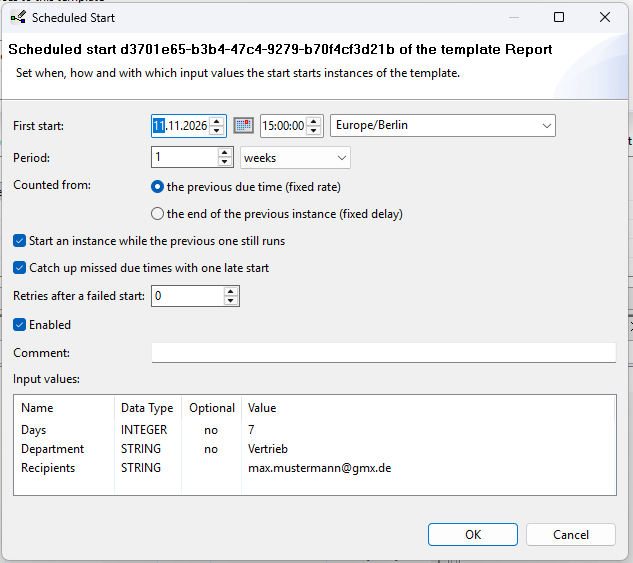
In the Monitor and in the Process Template Editor, you edit a start in the same dialogue Scheduled Start. In the configuration file, each setting corresponds to a property.
| Setting | Meaning |
|---|---|
| First start | The first due time (date and time). |
| Time zone of the first start | The time zone in which the first start and all following due times are calculated, e.g. Europe/Berlin. |
| Period | The interval between the starts in minutes, hours, days, weeks or months. With none, due once the start is due exactly once. |
| Counted from | the previous due time (fixed rate): The interval counts from the previous due time, e.g. every day at 7:00 a.m. the end of the previous instance (fixed delay): The interval counts from the end of the previous instance, e.g. 30 minutes after the last instance has finished. |
| Start an instance while the previous one still runs | For a fixed rate only: A new instance is started even if the previous one still runs. By default, a due time is skipped while the previous instance still runs. |
| Catch up missed due times with one late start | Due times which have been missed, e.g. while the Automatic Client was shut down, are caught up with one late start. Enabled by default. |
| Retries after a failed start | How often a failed start is retried. By default 0, i.e. no retry. |
| Enabled | Only enabled starts create instances, so you can disable a start temporarily without removing it. |
| Comment | Any comment. |
| Input values | The values of the input parameters of the process template with which the instance is started. As long as values of mandatory parameters are missing, the dialogue points this out and you cannot close it with OK. |
Time zones and daylight saving time
An interval in minutes or hours is a fixed length of time, an interval in days, weeks or months is a calendar period. A daily start at 7:00 a.m. therefore stays at 7:00 a.m. local time across a change of daylight saving time, whereas a start every 24 hours shifts by one hour.
A due time is never handled twice, not even after a crash. If you add a start, enable it again or change its schedule, only the due times from then on count. Earlier due times are not caught up. If a start which is due once has its first start in the past, the dialogue warns that it will never start an instance.
Scheduled starts in the Monitor
In the Monitor, you add and change scheduled starts and see when a start was due last. This requires the supervisor role.
-
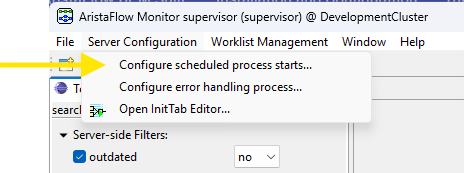
In the AristaFlow Monitor, select the menu Server Configuration → Configure scheduled process starts....
-
The dialogue Scheduled Process Starts shows the Event Managers at the top under Published event managers. If the column Binds the handler shows yes, this Event Manager executes the scheduled starts. The dialogue already selects it, and the header confirms: The event manager … binds the handler of scheduled process starts and executes the starts shown. If no or more than one Event Manager binds the handler, the header shows a warning instead (see Setting up the Event Manager). If the Monitor cannot read the configuration of an Event Manager, the column Remark shows the reason.
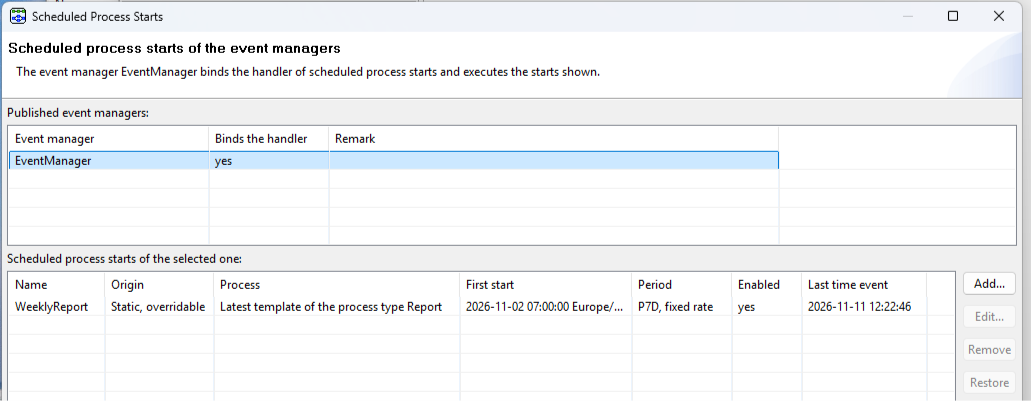
The lower part of the dialogue lists all starts of the selected Event Manager with Name, Origin, Process, First start, Period, Enabled and Last time event, the due time handled last.
- Add... adds a new start.
- Edit... changes the selected start.
- Remove removes the selected start.
- Restore restores a start from the configuration file which you have changed in the Monitor.
The column Origin shows where a start comes from:
Origin Meaning Runtime Added in the Monitor. You can change and remove it. Static, read-only Defined in the configuration file. You cannot change it in the Monitor. Static, overridable Defined in the configuration file and marked as overridable. If you change it in the Monitor, your change replaces the entry of the file. Static, overridden An overridable start from the configuration file which you have changed in the Monitor. Restore makes the entry of the file apply again. -
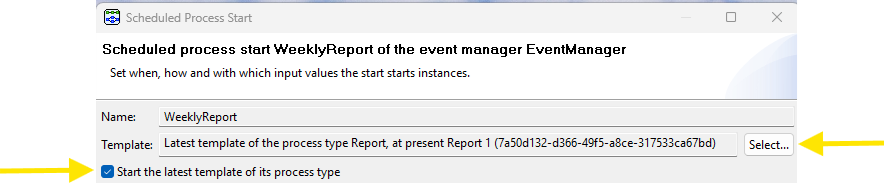
Click Add.... The dialogue Scheduled Process Start opens. Enter a unique name and select the process template with Select....
-
If the start is to start the latest released version always, set Start the latest template of its process type. The start then starts the process template of the process type which is the latest at the due time, so it follows new versions automatically.
Changed input parameters
If a new version changes the input parameters of the process template, check whether the stored input values of the start still fit. For example, if a mandatory input parameter is added or the data type of a parameter changes, the start can no longer be executed.
-
Set the settings and confirm with OK.
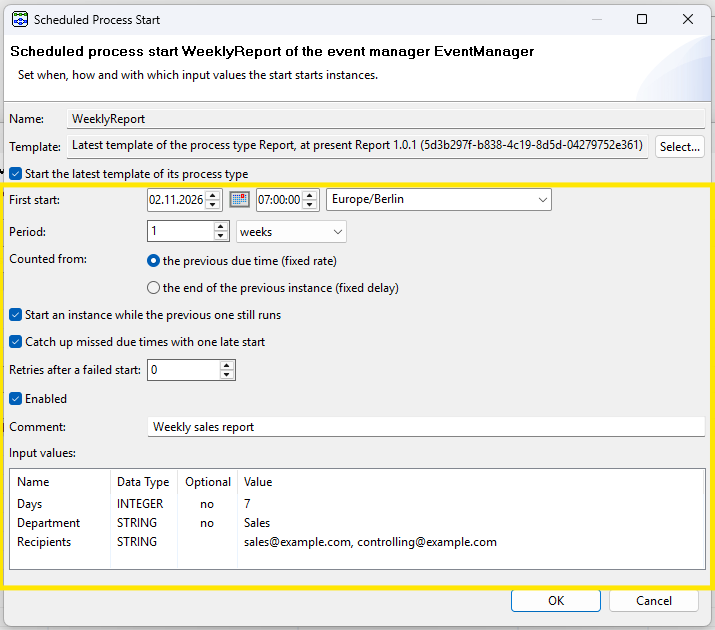
The start takes effect immediately.
If a change is invalid, the Monitor refuses it and states the reason. Nothing is stored then.
Scheduled starts in the configuration file
Starts can also be defined statically in the file conf/ADEPT2.properties which holds the other entries of the Event Manager as well (see Setting up the Event Manager). This suits a start which is to be shipped with an installation. The starts take effect after restarting the Automatic Client or the integrated server and then appear in the Monitor with the Origin Static, ….
EventManager.ScheduledStarts.Instances lists the names of the starts, and each start name has the entries EventManager.ScheduledStarts.name.property.
The following example starts the latest process template of the process type Report every Monday at 7:00 a.m. It has the mandatory input parameters Department (STRING) and Days (INTEGER) and the optional input parameter Recipients (STRING):
EventManager.ScheduledStarts.Instances = WeeklyReport
EventManager.ScheduledStarts.WeeklyReport.Start = 2026-11-02T07:00:00+01:00[Europe/Berlin]
EventManager.ScheduledStarts.WeeklyReport.Period = P1W
EventManager.ScheduledStarts.WeeklyReport.FixedRate = true
EventManager.ScheduledStarts.WeeklyReport.ProcessType = Report
EventManager.ScheduledStarts.WeeklyReport.Comment = Weekly sales report
EventManager.ScheduledStarts.WeeklyReport.Overridable = true
# Mandatory input parameters
EventManager.ScheduledStarts.WeeklyReport.Input.Department = STRING:Sales
EventManager.ScheduledStarts.WeeklyReport.Input.Days = INTEGER:7
# Optional input parameter, the comma in the value is escaped
EventManager.ScheduledStarts.WeeklyReport.Input.Recipients = STRING:sales@example.com\, controlling@example.com
| Property | Meaning |
|---|---|
Start |
The first due time as an ISO-8601 date-time with offset and time zone. Required. |
Period |
The interval as an ISO-8601 duration, e.g. PT15M (15 minutes), PT2H (2 hours), P1D (1 day), P1W (1 week) or P1M (1 month). Without it, the start is due once. |
FixedRate |
true for a fixed rate, false for a fixed delay. Required if an interval is set. |
OverlapAllowed |
Allow overlapping instances, default false. |
MissedStartCaughtUp |
Catch up missed due times, default true. |
RetryCount |
The number of retries after a failed start, default 0. |
TemplateID or ProcessType |
The ID of the process template, or the process type whose latest process template is started. Exactly one of them is required. |
Input.parameter |
The value of an input parameter in the form data type:value, e.g. STRING:Sales, INTEGER:7 or DATE:2026-10-01T04:00:00Z. |
Enabled |
Whether the start is enabled, default true. |
Comment |
A comment. |
Overridable |
Whether the start may be changed in the Monitor, default false. |
Unknown or misspelt entries are refused, so that a typing error does not change a start unnoticed.
For the input values:
- Each mandatory input parameter needs an entry
Input.parameter. You may omit an optional parameter, the instance then starts without a value for it. If a mandatory value is missing, the due time is skipped (see requirements). - With
ProcessType, each due time starts the then latest process template. A new version therefore needs the same mandatory input parameters, otherwise its due times are skipped. - In the configuration file, a comma separates values. Write a comma within a value as
\,, otherwise only the part before the first comma counts. - Leading and trailing blanks of a STRING value are removed. Variables such as
${...}are not resolved but taken as text. - A value must not exceed 4000 characters.
- An input value of a user-defined type (UDT) has the form
USERDEFINED:UDT name:content, the content being gzipped and Base64-encoded. If the UDT name is missing, the start is refused. So you had best add UDT input values in the Monitor.
Scheduled starts in the Process Template Editor
In the Process Template Editor, you add a scheduled start to the template status of a process template. The start then belongs to this version of the process template. It always starts exactly this version and does not appear in the Monitor under Server Configuration (see Pitfalls).
-
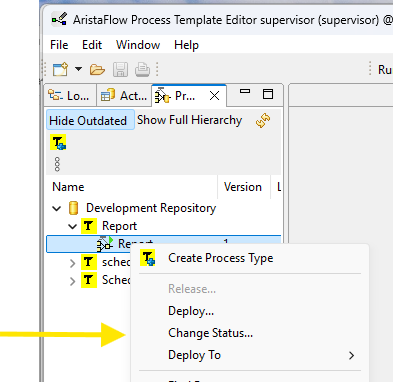
Open the template status of the process template in the Process Repository Browser with Change Status... from its context menu.
-
The section Scheduled Starts lists all scheduled starts of the process template with ID, First start, Period, Enabled and Comment.
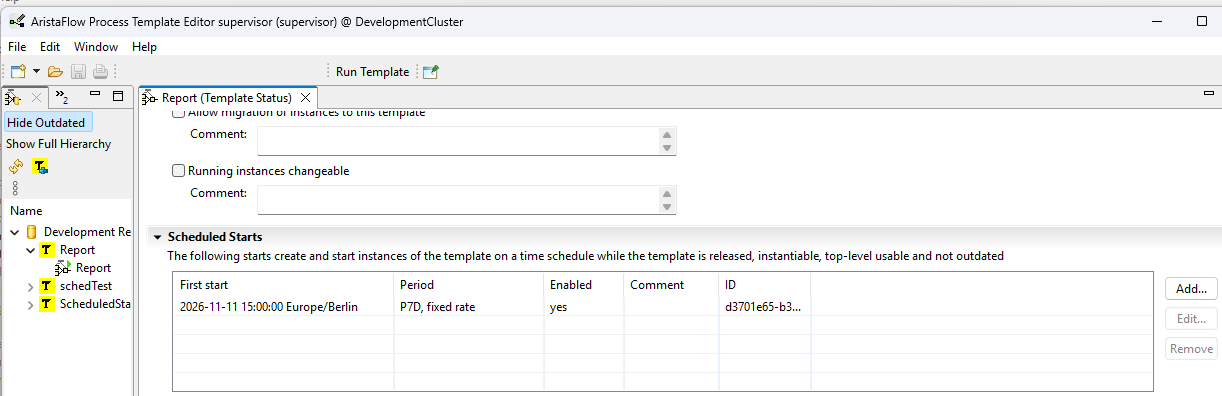
- Add... adds a new start. It gets a random ID which never changes.
- Edit... changes the selected start in the dialogue Scheduled Start.
- Remove removes the selected start.
-
New or changed starts are saved with the template status.
If the process template is deployed, the changed status is transferred to the server. The Event Manager takes over the change with its next poll.
Permission
Only the supervisor of the process template or a user with the supervisor role may enable scheduled starts or change, disable or remove enabled ones. If another user tries to, saving is refused. If another user deploys a process template with enabled starts, they are stored disabled and have to be enabled by the supervisor.
The starts only run while the process template meets the requirements. An ID may be enabled in exactly one startable process template.
New version of a process template
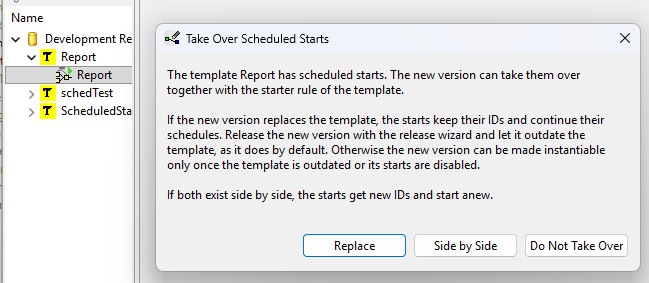
When you create a new version in the Process Repository Browser with Derive New Child or Import Template as Child... from the context menu of the previous version, the Process Template Editor offers in the dialogue Take Over Scheduled Starts to take over its starts together with the starter rule. The dialogue appears only if the previous version has scheduled starts in the process repository, i.e. in its status which you open with Change Status... in the Process Repository Browser:
-
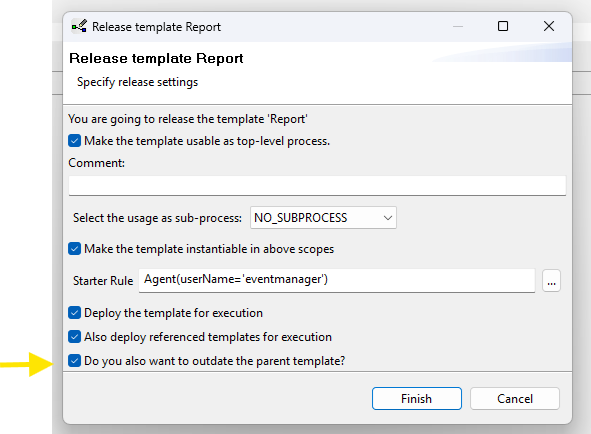
Replace: The new version replaces the previous one. The starts keep their IDs and continue their schedules instead of starting anew. When releasing the new version in the Process Repository Browser with Release..., keep the defaults. The release wizard then marks the previous version as outdated (Do you also want to outdate the parent template?).
-
Side by Side: Both versions exist side by side. The starts taken over get new IDs and start their schedules anew.
- Do Not Take Over: The new version gets no starts.
If a start is removed from a template status, the Event Manager keeps its schedule for two periods. If the start returns within this time, in a new version of the process template as well, it continues its schedule.
Requirements of the process template
A scheduled start creates an instance only if, at the due time, the process template
- is released, instantiable, top-level usable and not outdated,
- has a Starter Rule which admits the user of the Event Manager (as delivered the user eventmanager, see
EventManager.ServiceAuthUserName), e.g.Agent(username='eventmanager'), and - receives a value from the start for each mandatory input parameter.
If one of these conditions is not met, the due time is skipped and logged by the Event Manager. The start does not try again but waits for its next due time. How to set the starter rule is described in Deployment.
Pitfalls
Starts which were stored with the process template in the Process Template Editor are not visible in the Monitor. The dialogue Server Configuration → Configure scheduled process starts... in the Monitor shows only the starts from the Monitor and from the configuration file. Starts which you have added to a template status in the Process Template Editor are visible there only. Whether they create instances, you see in the Monitor by the started instances of the process template.
The template status in the process repository can differ from the one in the process manager. Each deployed process template has two template statuses: one in the process repository and one in the process manager of the server. The starts of the process manager are executed.
- In the Process Repository Browser (Change Status...), you edit the status in the process repository. Saving transfers it to the process manager, so both stay the same.
- In the Template Manager View (Open Template Status), you edit the status in the process manager only. This change does not appear in the process repository and is overwritten when you save the status in the Process Repository Browser next time.
The start creates no instance. Check the requirements. Often the starter rule does not admit the user of the Event Manager, e.g. a starter rule admitting the supervisor only. The log of the Event Manager states the reason.
Notes and restrictions
- The configuration entries of a start, including its name and the parameter name, must not exceed 255 characters. So choose short names. A start with longer entries is refused.
- Only a user with the supervisor role can read the configuration of the Event Manager, with its passwords masked.
- Refused or failed starts and skipped starts are logged as warnings by the Event Manager, i.e. in the log of the Automatic Client or of the integrated server. Successful starts are logged only if the log level for
de.aristaflow.adept2.core.eventmanageris set to FINE. When a start was due last is shown in the Monitor in the column Last time event.